ChatGPT (desktop)
Download the ChatGPT desktop app, then connect it to CheapAI with CC Switch or Folkbench Switch.
If you haven't installed a setup tool yet, start with Setup tools (required).
Download the ChatGPT desktop app
Open the official download page chatgpt.com/download and download the installer for your system. It requires macOS 14 or later, or Windows 10 or later. You can also install ChatGPT from the Microsoft Store.
Configure with CC Switch
Since July 2026, the official ChatGPT desktop app includes Codex. Configure the Codex section in CC Switch; the desktop app uses the same settings.
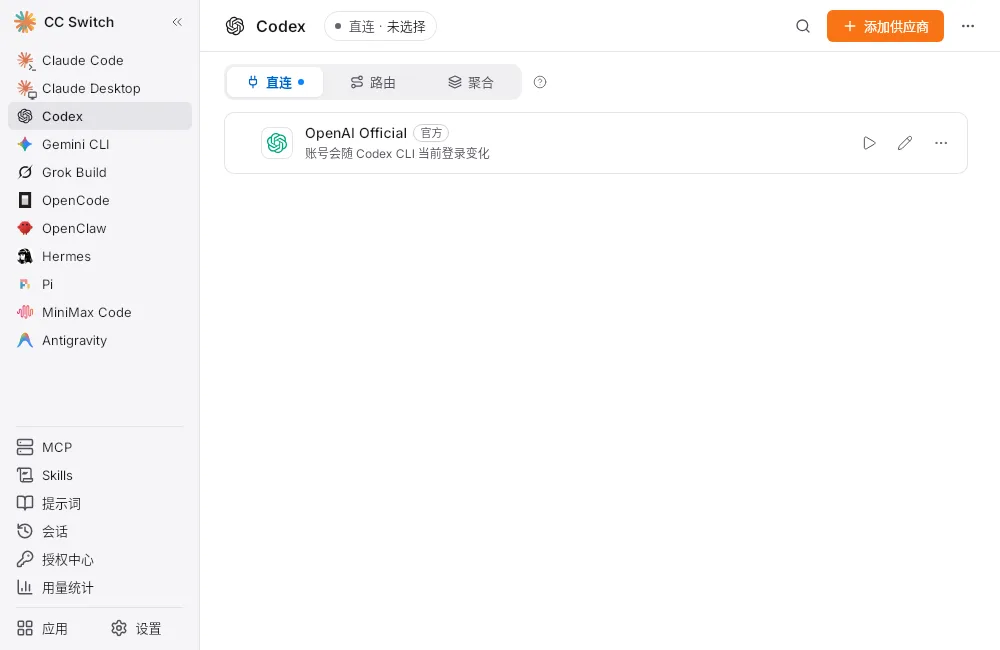
Open CC Switch, select Codex in the left sidebar, then click Add provider.
The ChatGPT desktop app shares this Codex configuration.
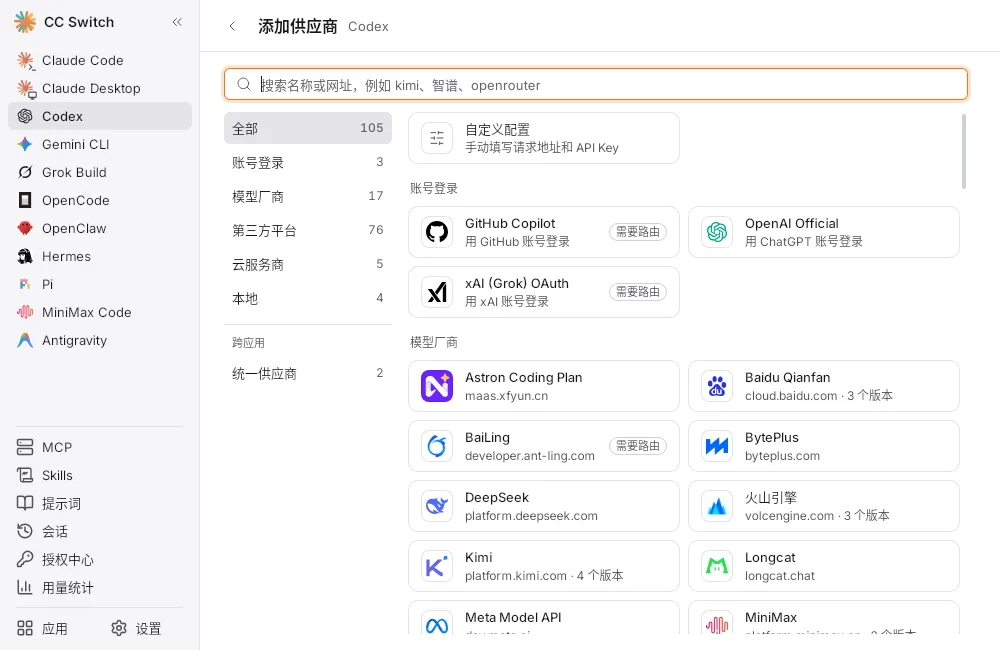
- Choose Custom
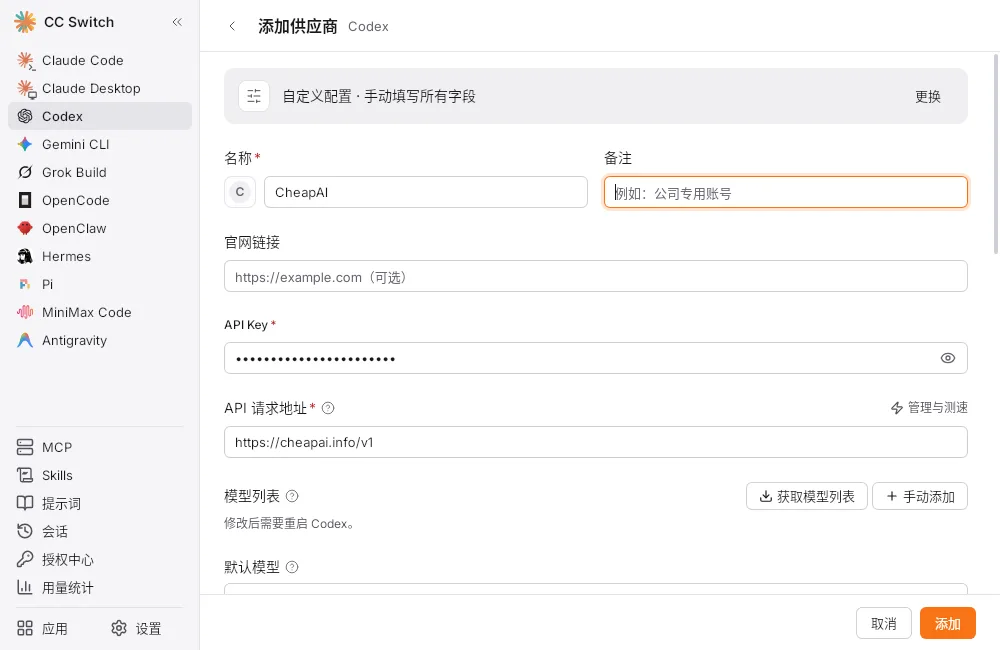
Fill in the following fields:
- Name:
CheapAI - API Key: paste the key from API Keys
- API URL:
https://cheapai.info/v1
- Name:
Scroll down and click Fetch model list.
In the Select models dialog, check the models you want, then click Apply.
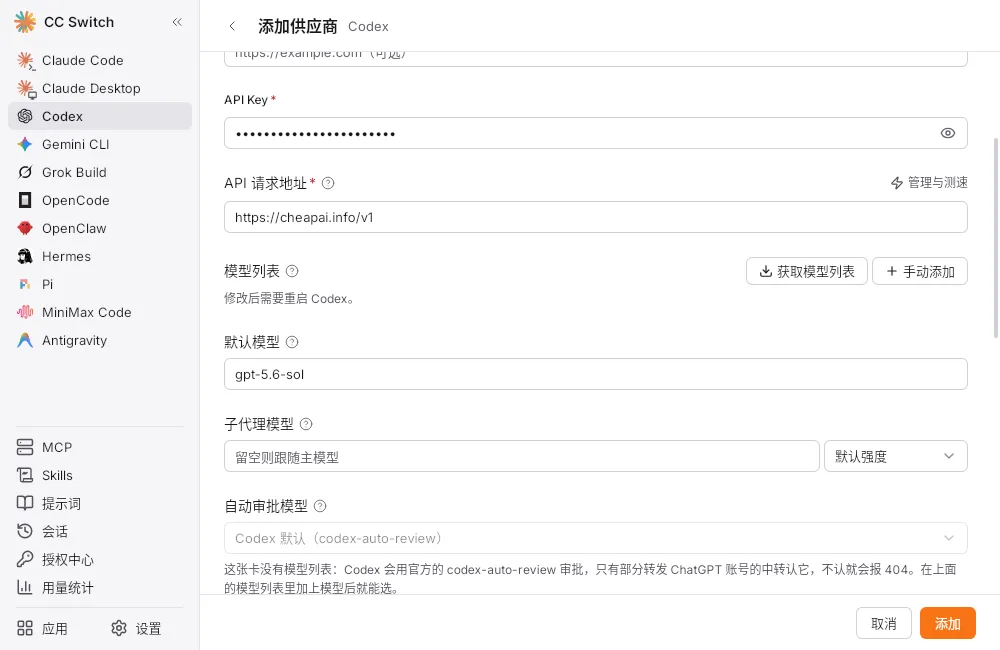
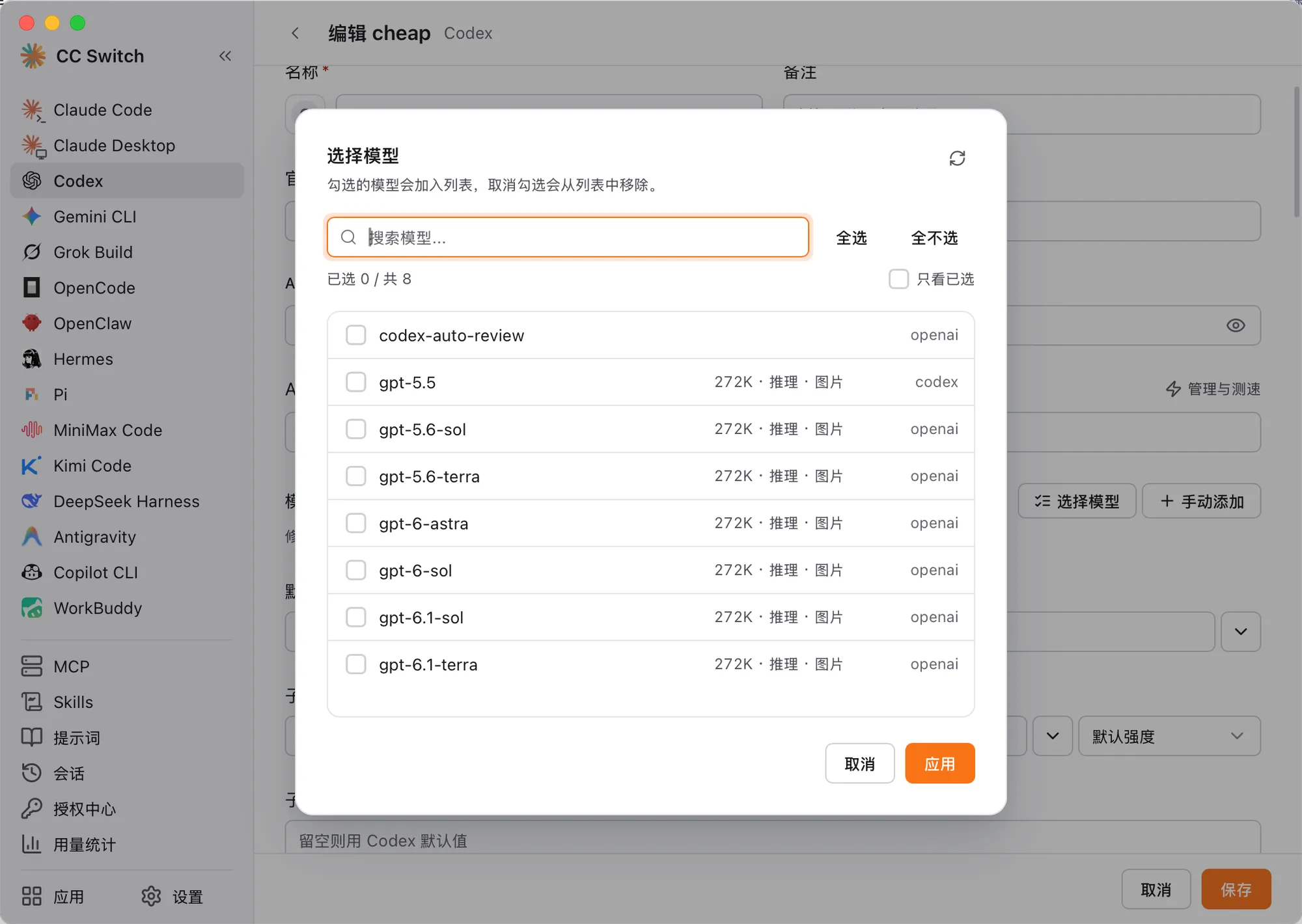
After you click Fetch model list, check models in Select models, then click Apply. Scroll further to Advanced options and set Upstream format based on the models you use most:
- Mainly OpenAI (GPT) models: choose
Responses - Also using other domestic models: choose
Chat Completions - Mainly Anthropic (Claude) models: choose
Anthropic Messages
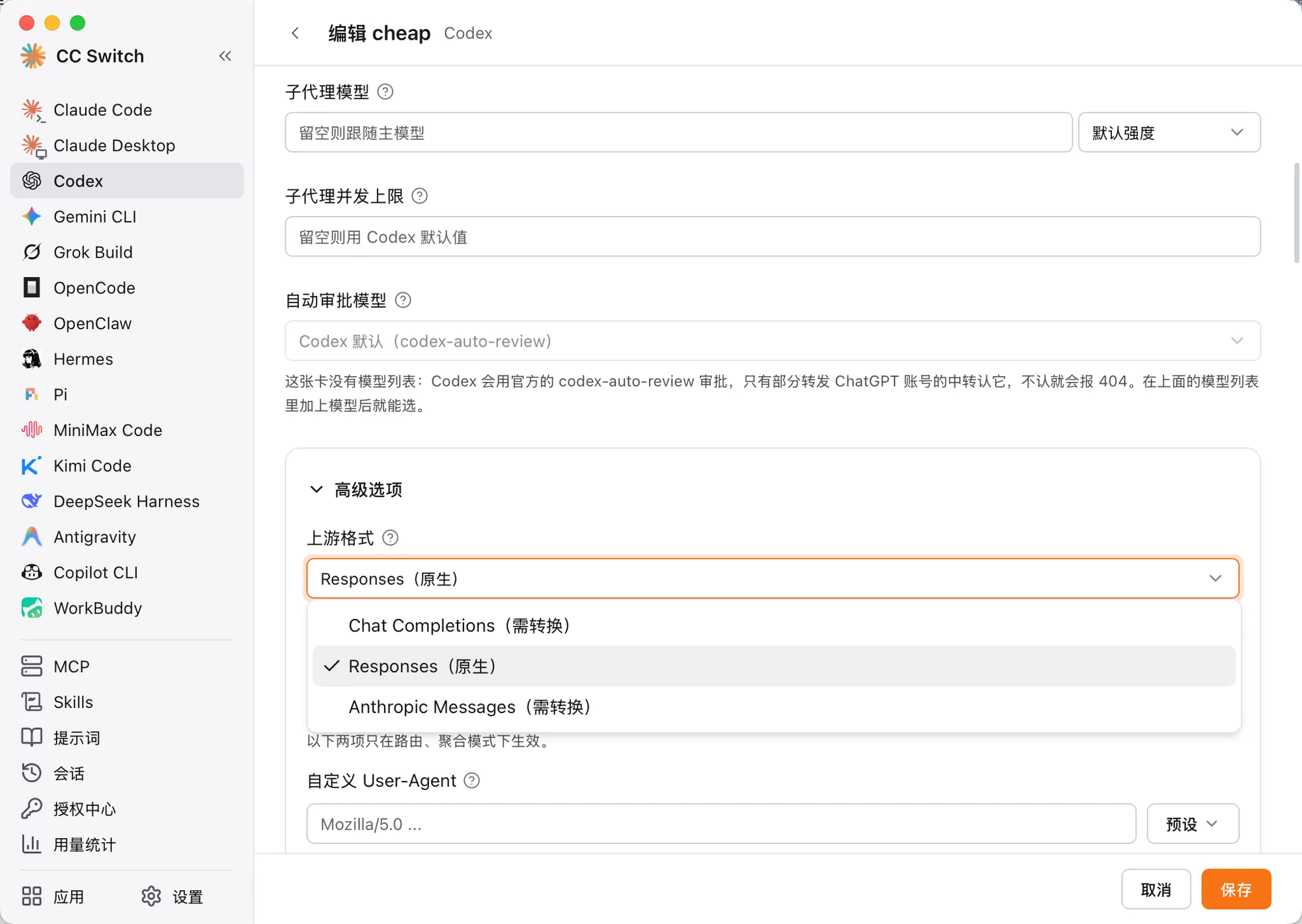
In Advanced options, set Upstream format based on the models you use most. - Mainly OpenAI (GPT) models: choose
- Click Add. CheapAI should show In use (if not, click ▷ on the card).
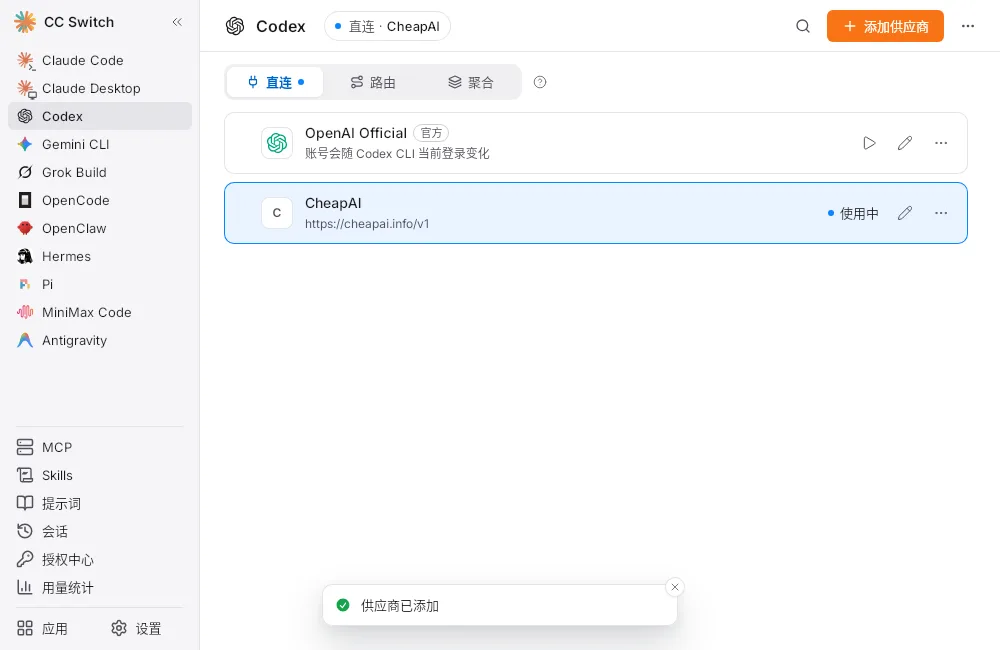
- Fully quit and reopen the ChatGPT desktop app (do not just close the window; quit from the menu or tray).
Configure with Folkbench Switch
In Folkbench Switch, configure Codex as well; the ChatGPT desktop app uses the same settings.
Open Folkbench Switch, then:
- Switch to Pro in the top-right
- Select Codex in the top bar
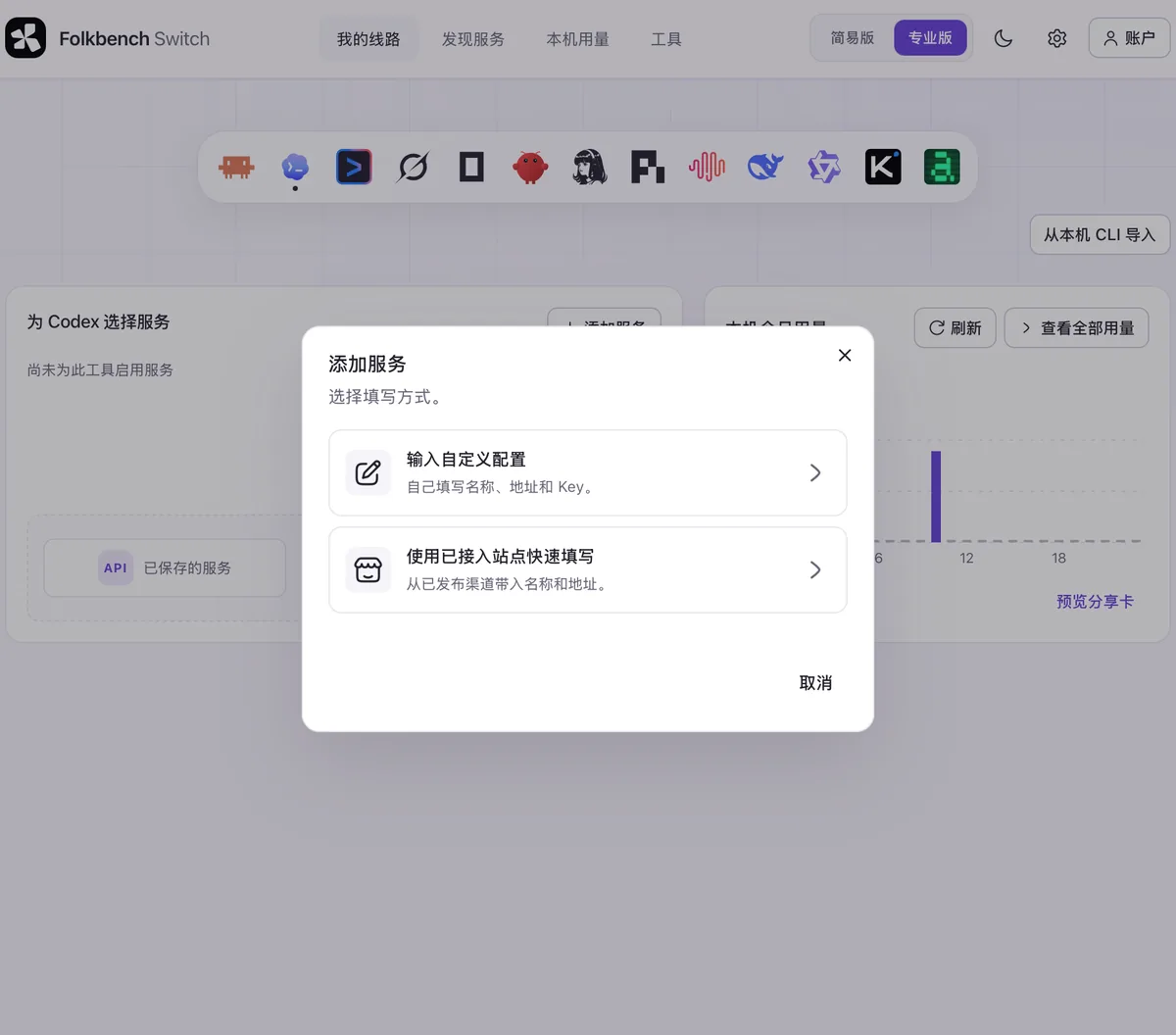
- Click + Add service
The ChatGPT desktop app shares this Codex configuration.
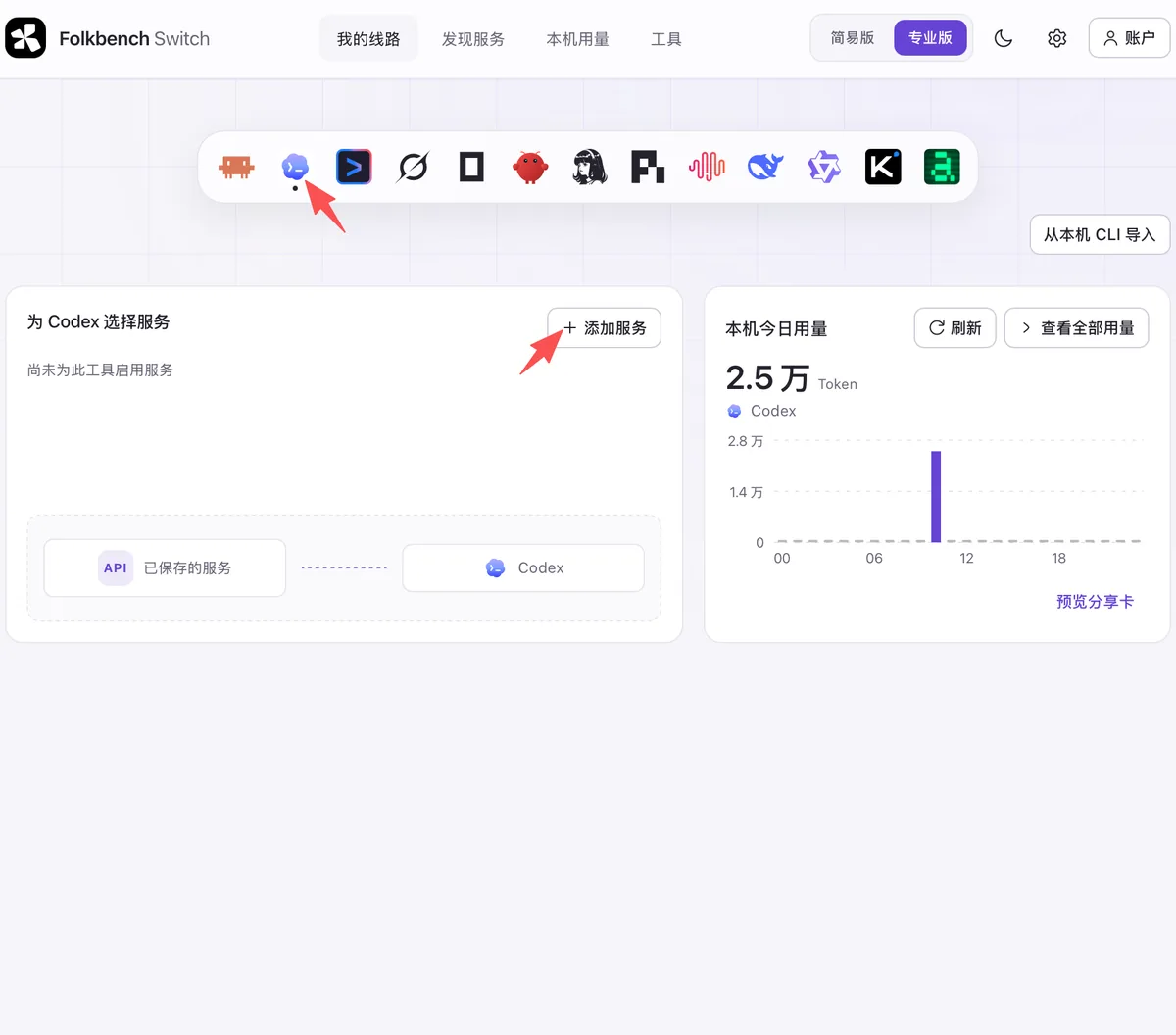
- Choose Quick fill from listed sites
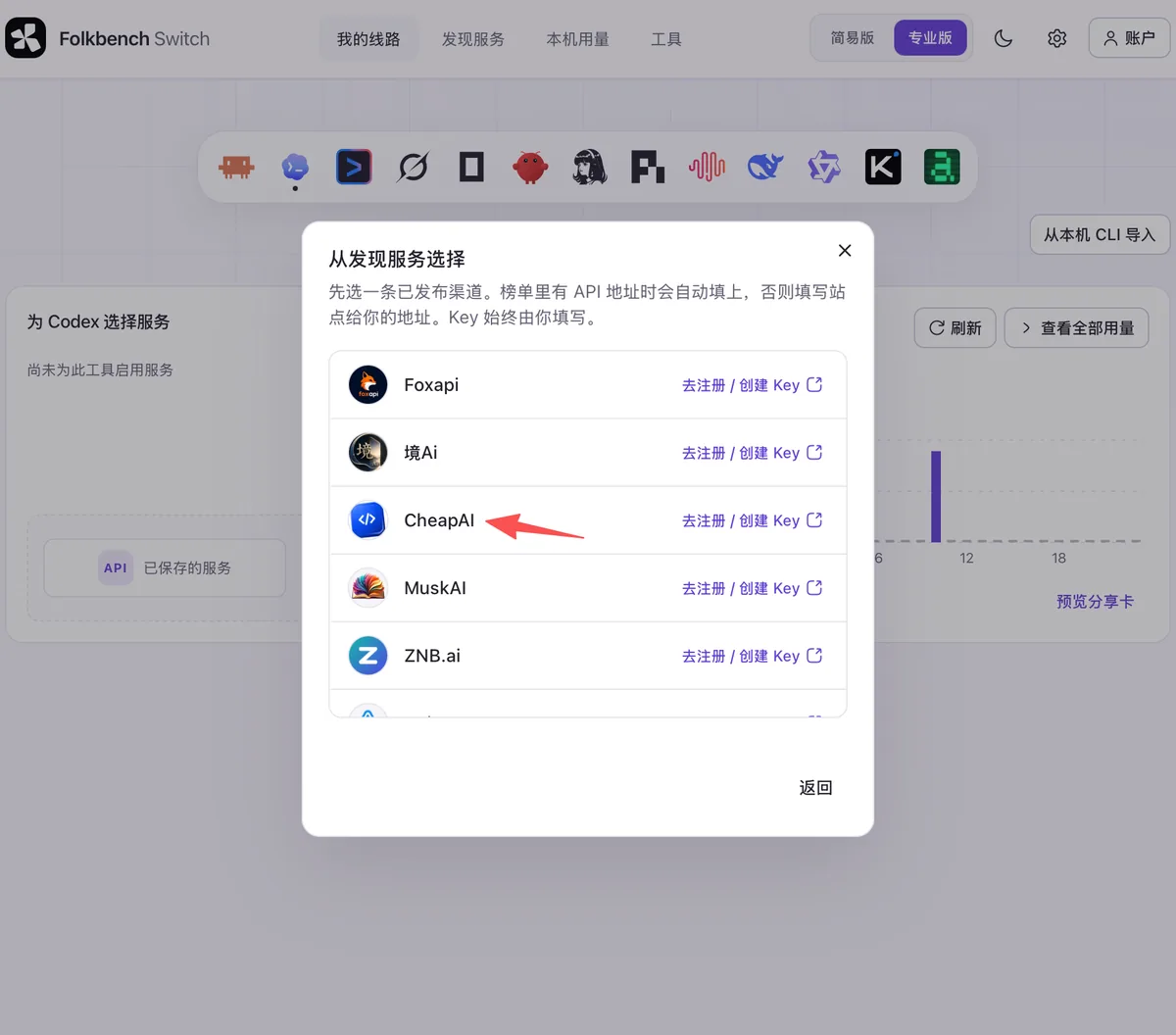
- Pick CheapAI in the list
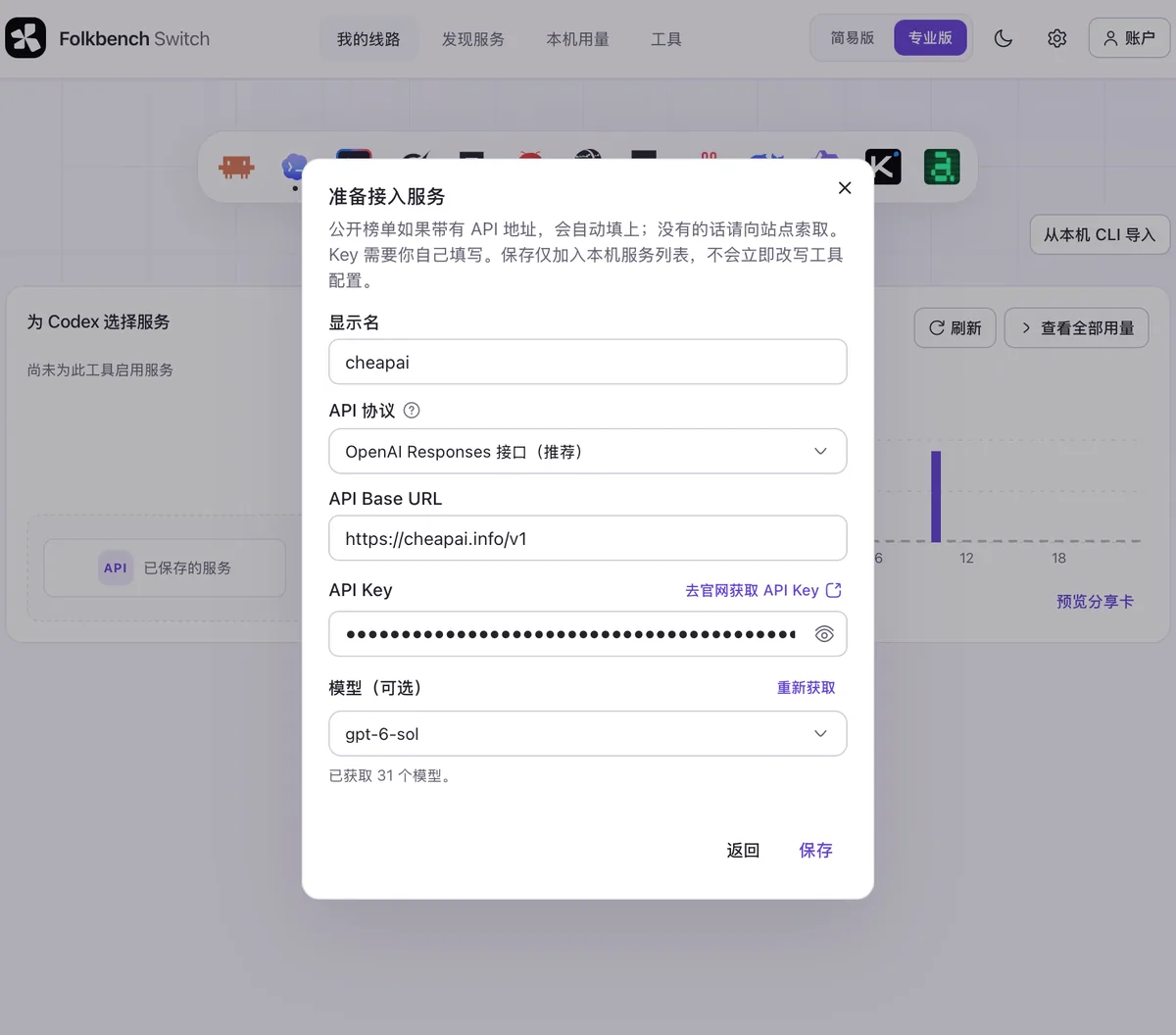
In Prepare service, confirm and fill in:
- Protocol:
OpenAI Responses (recommended) - API Base URL:
https://cheapai.info/v1 - API Key: paste the key from API Keys
- Model: optional
Then click Save.
- Protocol:
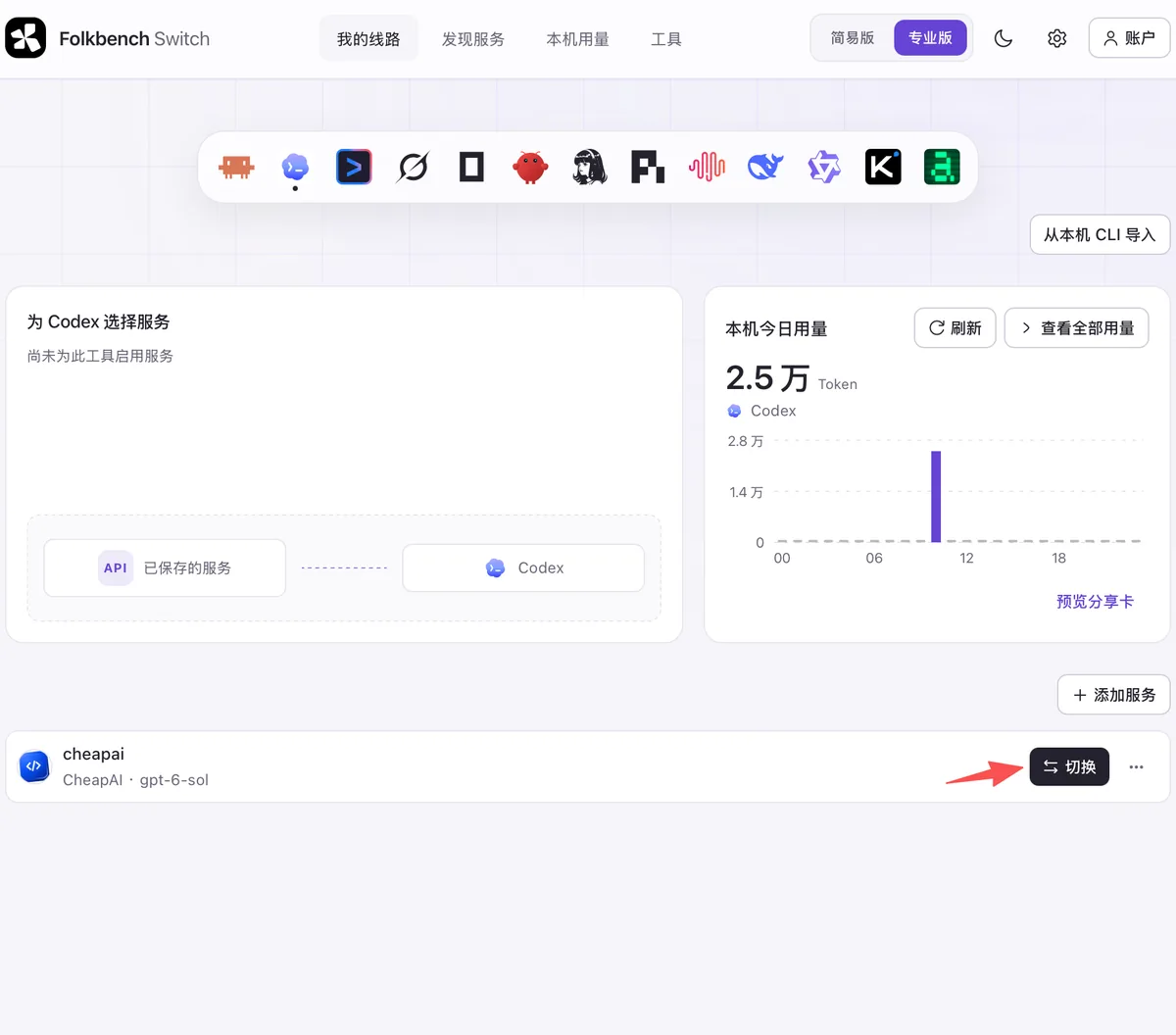
Saving only adds it to the local list.
On the cheapai card at the bottom, click Switch.
- Fully quit and reopen the ChatGPT desktop app (do not just close the window; quit from the menu or tray).